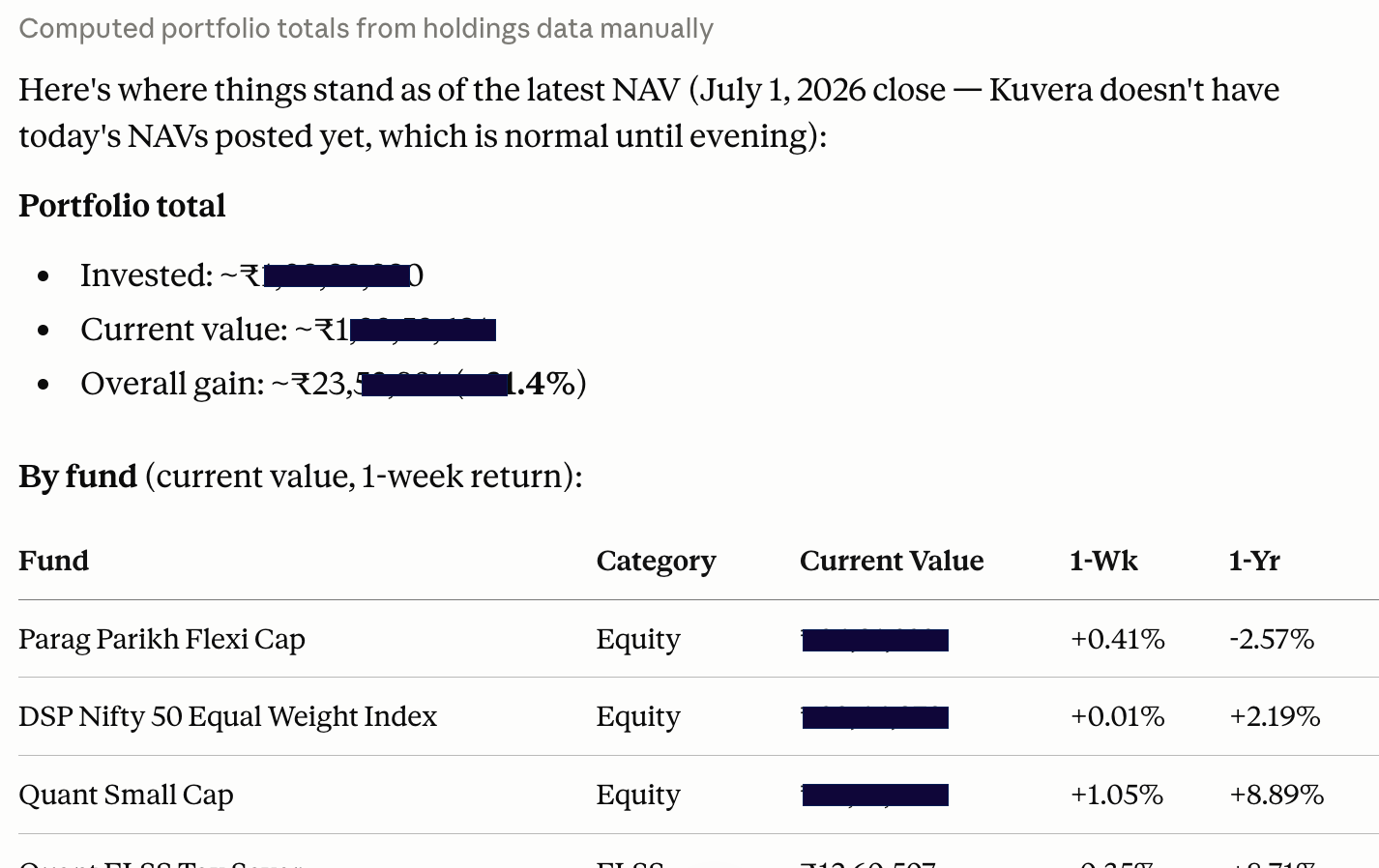
An open-source MCP server that connects Claude, ChatGPT, and other AI assistants to your Kuvera mutual fund portfolio โ in real time.
Get started โ
Ask your AI assistant anything about your Kuvera portfolio using natural language.
List all your mutual fund holdings with units, invested value, and current value.
Get gains, XIRR, and one-day returns across all your portfolios.
Look up AUM, expense ratio, NAV, category, and historical returns for any fund.
Switch between your Kuvera portfolios to operate in a different account context.
Check whether your Kuvera token is still valid before running other queries.
See which companies a fund holds and the proportionate value of your investment.
Get your token
Copy your Kuvera session JWT from the browser console.
Configure your AI
Point your AI client to the MCP server URL.
Ask anything
Query your portfolio in plain English.
Choose your AI client below and follow the steps.
Public server: This server is hosted at https://null0.exe.xyz โ free to use, no authentication required.
Claude Desktop only supports stdio-based MCP servers natively โ it cannot connect directly to an HTTP server using a url field.
Instead, use mcp-remote: a lightweight npm package that acts as a stdio bridge to the Kuvera MCP HTTP server.
You need Node.js / npm installed, but you do not need to install anything separately โ npx fetches it automatically.
Open claude_desktop_config.json and add:
{
"mcpServers": {
"kuvera": {
"command": "npx",
"args": ["-y", "mcp-remote", "https://null0.exe.xyz/sse"]
}
}
}
For self-hosting, replace null0.exe.xyz with your own domain.
If you are running the server locally (e.g. for development):
{
"mcpServers": {
"kuvera": {
"command": "npx",
"args": ["-y", "mcp-remote", "http://localhost:8000/sse"]
}
}
}
๐ Config file location
macOS: ~/Library/Application Support/Claude/claude_desktop_config.json
Windows: %APPDATA%\Claude\claude_desktop_config.json
Restart Claude Desktop after saving the file for changes to take effect.
In Claude.ai, go to Settings โ Integrations โ Add integration and paste the connector URL:
https://null0.exe.xyz/sse
For self-hosting, replace null0.exe.xyz with your own domain.
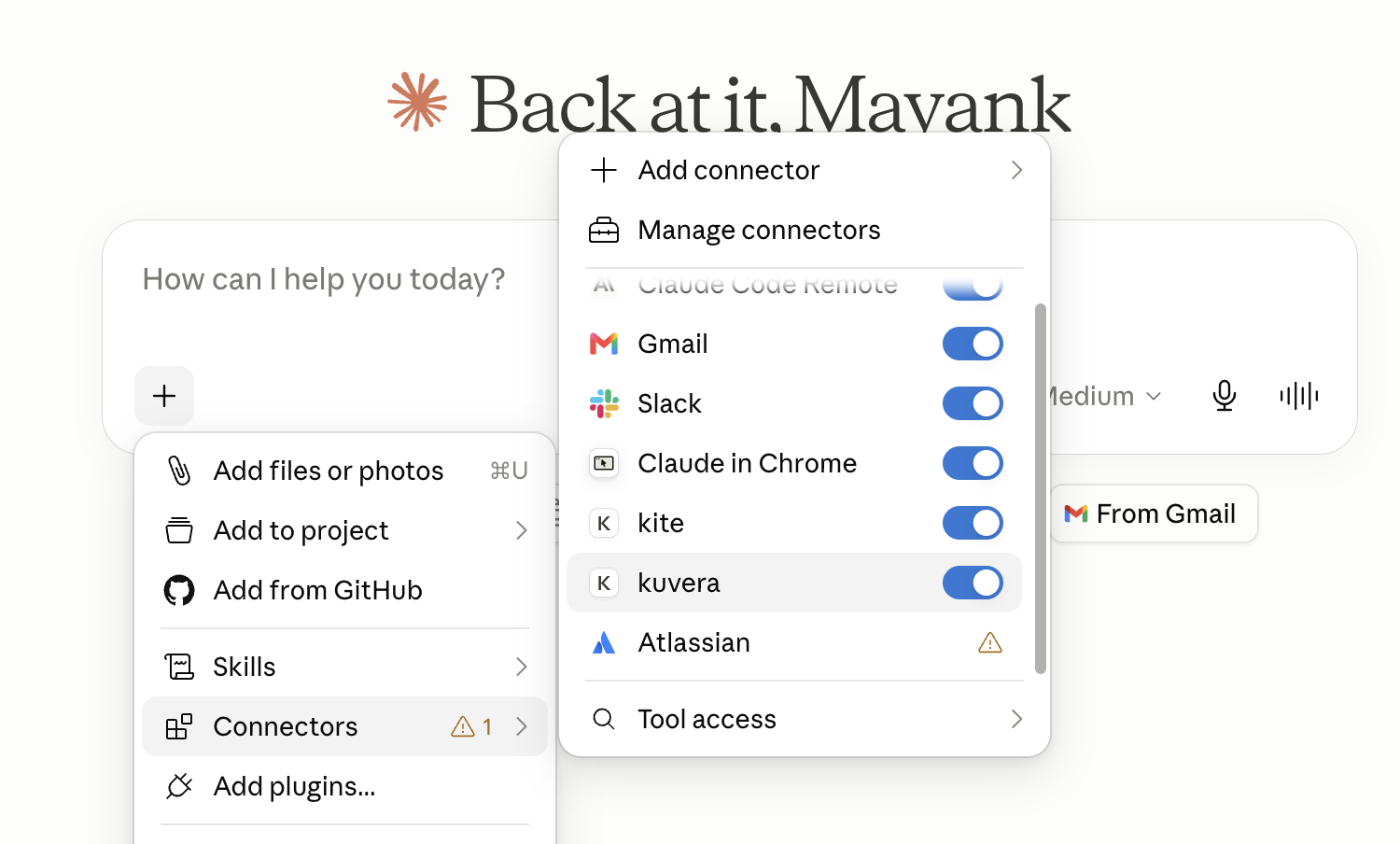
Once added, open the Connectors popover to confirm kuvera appears with the toggle enabled:
ChatGPT supports MCP servers through its Connectors feature. This is available in ChatGPT Team and Enterprise plans.
Go to Settings โ Connectors โ Add connector and enter:
https://null0.exe.xyz/mcp
Use the /mcp endpoint (Streamable HTTP transport) for ChatGPT compatibility.
This server exposes two MCP transport endpoints:
/sse โ SSE transport (Server-Sent Events)/sse/messages/.
/mcp โ Streamable HTTP transporthttps://null0.exe.xyz/sse # SSE https://null0.exe.xyz/mcp # Streamable HTTP
๐ฌ Try asking your AI assistant:
Your Kuvera session token lives in your browser's localStorage after you log in. Here's how to retrieve it:
Log in to kuvera.in in your browser
Use any browser โ Chrome, Firefox, or Edge.
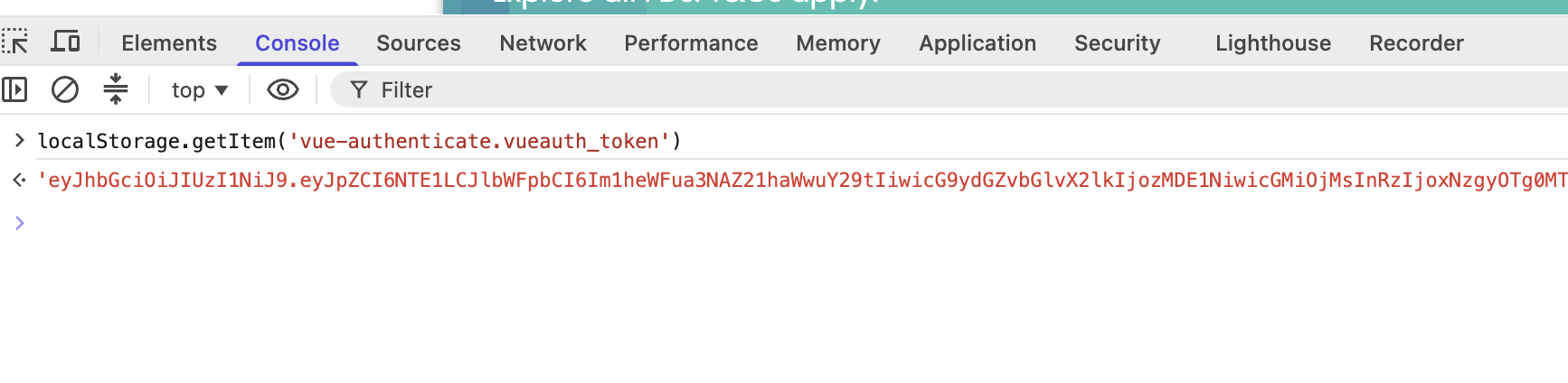
Open the browser DevTools Console
Press F12 (or Cmd+Option+J on Mac) and click the Console tab.
Paste and run this command
localStorage.getItem('vue-authenticate.vueauth_token')
Copy the returned string
It will look like a long string of three dot-separated segments. That's your JWT token.
Paste it when your AI assistant asks
The AI will ask for it the first time you use a Kuvera tool. You can validate it with the validateToken tool.
โ ๏ธ Token expiry
The token expires with your browser session. If a tool returns an error, re-fetch the token and paste it again.
๐ Security note
This token grants full read and transaction access to your Kuvera account. If you believe it has been compromised, log out of kuvera.in immediately to invalidate it.